Cinema guide


A Blish HUD module for Guild Wars 2 that lets you watch Twitch streams, YouTube videos, or play any VLC stream directly in-game.
Display it on your screen or place video screens in the game world.
Host synchronized watch parties with your guildmates and friends.
Table of Contents
- Features
- Installation
- Display Modes
- Main Settings Window
- Watch Party
- Playback Controls
- Twitch Chat Window
- Editor Windows
- Supported Media Formats
- Known Limitations
- Feedback
- License
Features
| Feature | Description |
|---|---|
| Twitch Integration | Watch live Twitch streams with quality selection |
| YouTube Playback | Play YouTube videos with full playback control |
| Watch Party | Host synchronized viewing sessions with friends |
| Followed Channels | Link your Twitch account to see your followed live channels |
| Custom URLs | Play any video URL supported by LibVLC |
| Radio Streams | Play internet radio with live track info display |
| On-Screen Display | Floating window overlay, freely position and resize |
| In-Game World Display | Place 3D video screens at custom locations in the game world |
| Twitch Chat | View Twitch chat in a separate dockable window |
| Presets | Pre-configured stream presets and world locations |
| Save & Share | Add, save, export, and import your own streams and locations |
Installation
- Install Blish HUD
- Download
CinemaHUD.bhmfrom the releases page - Place the file in
Documents/Guild Wars 2/addons/blishhud/modules - Launch Blish HUD and enable CinemaHUD in the module settings
Display Modes
On-Screen Display
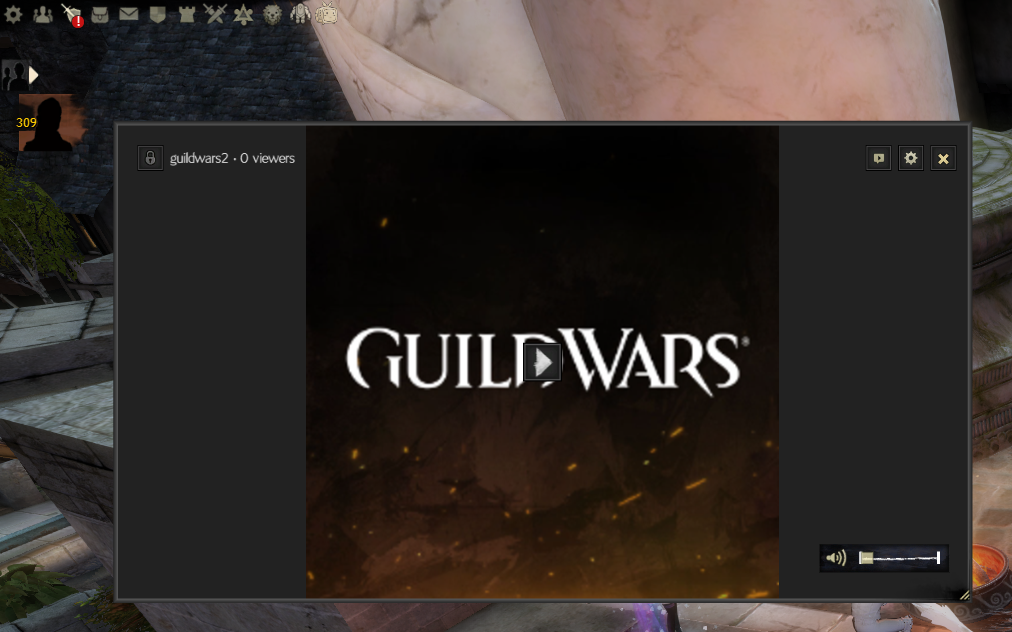
A floating video window that stays on top of the game. Drag to reposition and resize to your preference.
| Action | Control |
|---|---|
| Move window | Drag anywhere on the video |
| Resize | Drag corners or edges |
| Show controls | Hover over the video |
| Lock position | Click lock icon to prevent accidental moves |
In-Game World Display
Place a virtual screen at any location in the game world. The screen renders in 3D and responds to your camera position.
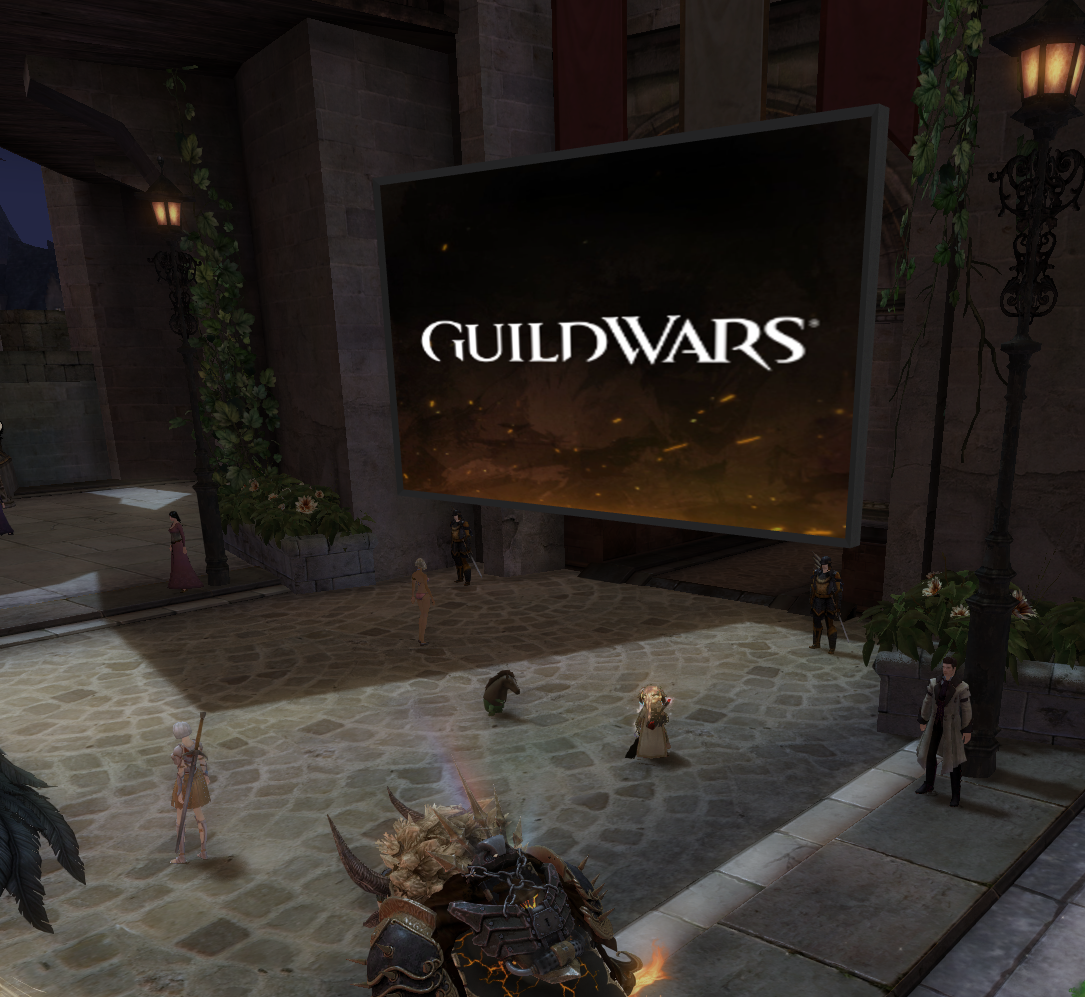
Select a location from the Display tab or create your own using the Location Editor.
Main Settings Window
Access the settings window via the CinemaHUD corner icon or Blish HUD module settings.

Display Tab
Configure display mode and manage world screen locations.
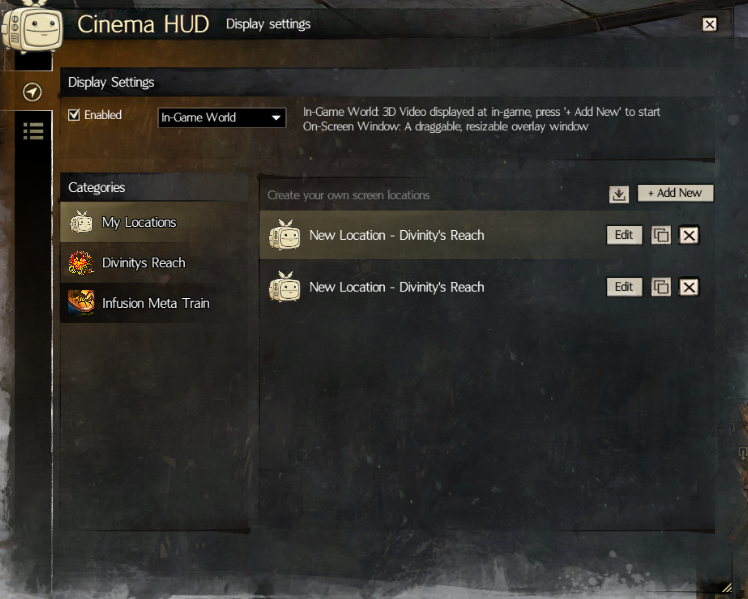
| Element | Description |
|---|---|
| Enabled | Toggle CinemaHUD on/off |
| Display Mode | Switch between On-Screen and In-Game World |
Categories Menu
| Category | Description |
|---|---|
| My Locations | Your saved custom world locations |
| Preset Categories | Pre-configured locations for cities, meta events, and points of interest (e.g., Divinity’s Reach, Infusion Meta Train) |
Toolbar Icons (My Locations)
| Icon | Action |
|---|---|
 | Add new custom location |
 | Import location from clipboard (JSON) |
Location Card Actions
| Icon | Action |
|---|---|
 | View location details (preset locations) |
 | Copy associated waypoint (preset locations) |
 | Edit saved location |
 | Export location to clipboard |
 | Delete saved location |
Source Tab (Channel Guide)
Browse and select streams to play.
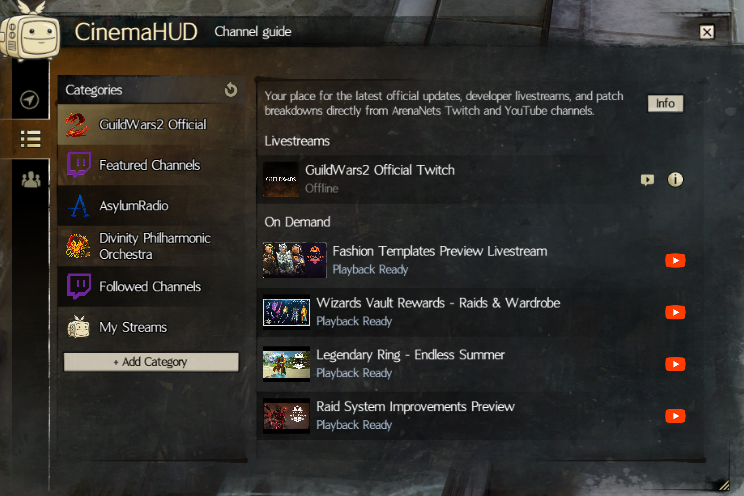
Categories Menu
| Category | Description |
|---|---|
| Preset Categories | Pre-configured stream collections (GW2, Music, etc.) |
| Followed Channels | Your followed Twitch channels (requires Twitch login) |
| Custom Categories | Your saved streams organized into custom categories |
Category Management
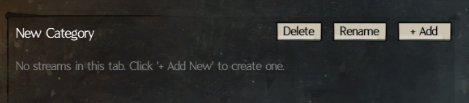
Create and organize your own stream categories for better organization.
| Action | Description |
|---|---|
| + Add Category | Click the button below the category menu to create a new category |
| Rename | Select a custom category, then click the “Rename” button in the toolbar to rename it |
| Delete | Select a custom category, then click the “Delete” button in the toolbar to remove it (requires at least one category to remain) |
Stream Types
| Type | Description |
|---|---|
| Live Streams | Twitch channels and other live broadcasts |
| On-Demand | Hosted videos (direct video URLs) |
| Radio | Audio-only streams with track info display |
Stream Card Actions
| Icon | Action |
|---|---|
 | Open Twitch chat for channel |
| Copy associated waypoint |
 | Apply world position preset |
 | Open relevant youtube page |
| Edit saved stream |
| Delete saved stream |
Toolbar Icons
| Icon | Action |
|---|---|
 | Refresh category data |
| Add new custom stream |
Watch Party
Host or join synchronized YouTube viewing sessions with other players. All viewers watch the same video at the same time, controlled by the party host.
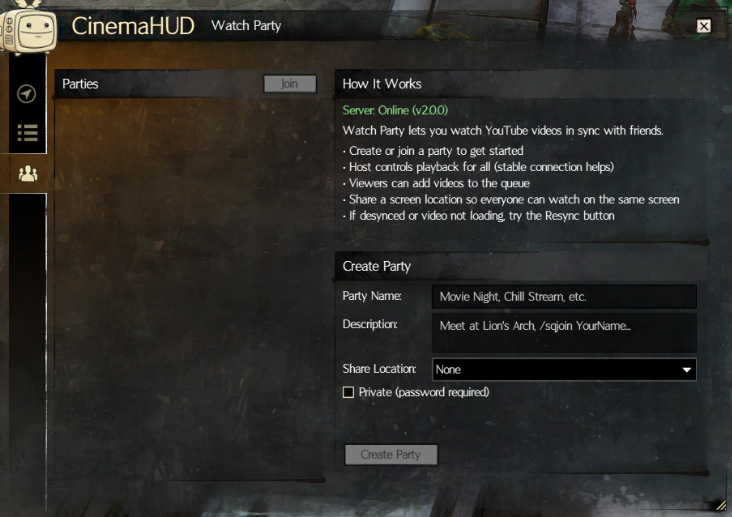
Watch Party Tab
Access the Watch Party feature via the third tab in the main settings window.
Party Browser (Left Panel)
| Element | Description |
|---|---|
| Parties List | Browse available public watch parties |
| Join Button | Join the selected party |
| Leave Party | Leave your current party |
| Viewers Panel | Shows all members in your current party with their playback status |
Creating a Party
| Field | Description |
|---|---|
| Party Name | Display name for your party |
| Description | Optional description for your party |
| Private | Enable to require a password for joining |
| Password | Set a password for private parties |
| Share Location | Share your current world screen position with viewers |
Host Controls
When hosting a party, you have access to:
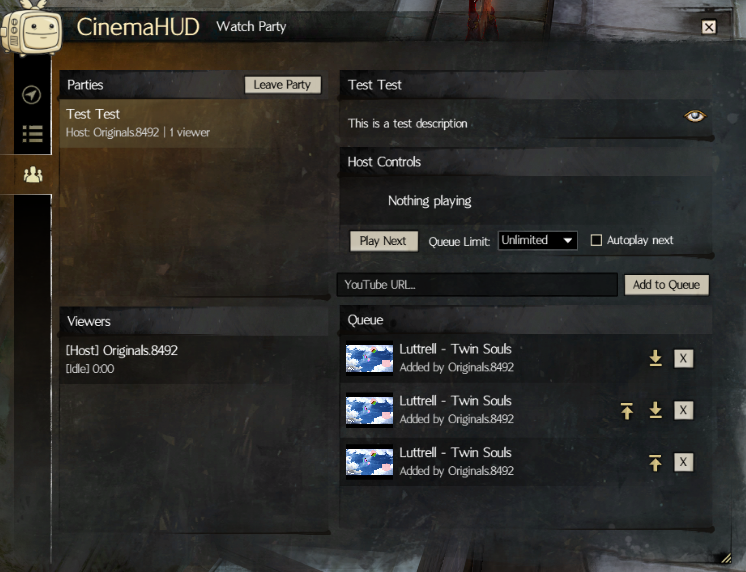
| Control | Description |
|---|---|
| Now Playing | Shows the current video being played |
| Play Next | Skip to the next video in the queue |
| Queue Limit | Set maximum videos each viewer can add to queue |
| Video Queue | Manage the playlist of upcoming videos |
| Autoplay next | Enable or disable automatic playback of the next video in the queue |
Joining a Party
- Select a party from the parties list
- Click “Join” (enter password if required for private parties)
- Your video will automatically sync with the host’s playback
Adding Videos to Queue
| Method | Description |
|---|---|
| YouTube URL | Paste a YouTube video URL to add it to the queue |
Viewer Status Icons
| Status | Description |
|---|---|
| Idle | Not currently playing video |
| Buffering | Video is loading |
| Playing | Video is playing and synced |
| Paused | Playback is paused |
Shared Screen Position
Hosts can share their world screen location with all party members. Click the screen position button to apply the host’s shared location to your display.
Requirements
- GW2 API access must be enabled (used for player identification)
- Internet connection to the Watch Party server
Playback Controls
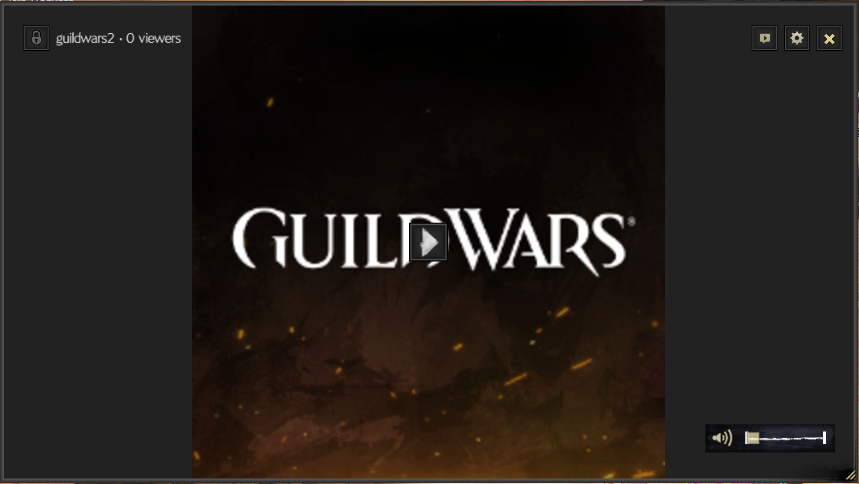
Hover over the video to reveal playback controls. Controls differ based on display mode:
On-Screen Window Controls
Controls appear as an overlay on the video window.
In-Game World Controls
Controls appear at the bottom of your screen when looking at the world display.

Control Bar Icons
| Icon | Action |
|---|---|
 | Play or pause playback |
 | Adjust volume (click to mute/unmute, drag slider) |
 | Open Twitch chat window (Twitch streams only) |
 | Open quality selection menu |
 | Lock window position (prevents accidental moves) |
 | Close video / disable CinemaHUD |
Seek Bar
For seekable content (video files, VODs), a seek bar appears showing playback progress. Click or drag to seek to a specific position.

Stream Info
For radio streams with metadata support (Shoutcast/Icecast), the current track name and artist are displayed on the screen.
For overlay screen mode, info will appear next to the lock icon.
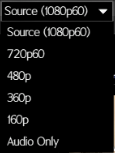
Quality Selection
Click the settings icon to open the quality menu. Available qualities depend on the stream source.
Twitch Chat Window
A separate window displaying Twitch chat for the current channel.
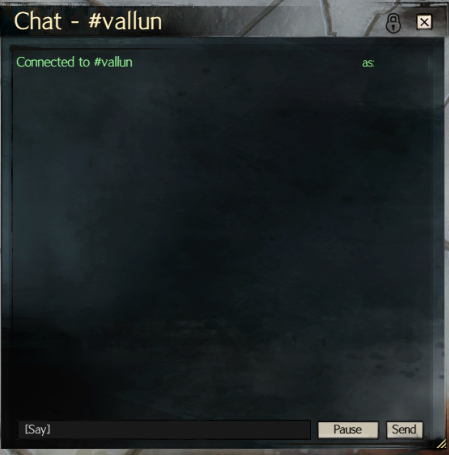
| Feature | Description |
|---|---|
| Resize | Drag corners or edges to resize |
| Move | Drag title bar to reposition |
| Lock | Click lock icon to prevent accidental repositioning |
| Auto-connect | Connects automatically when playing a Twitch stream |
Chat Authentication
To send messages in chat, link your Twitch account via the Source tab → Followed Channels → Login. Viewing chat does not require authentication.
Editor Windows
Stream Editor
Add or edit custom streams.
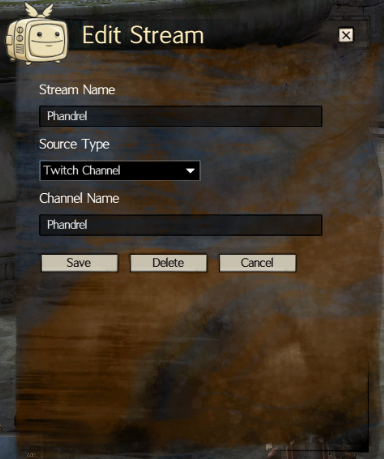
| Field | Description |
|---|---|
| Stream Name | Display name for the stream |
| Source Type | Twitch Channel or URL |
| Value | Channel name or Stream URL |
Note: On-demand content (videos ending in .mp4, .webm, .mkv, etc.) is automatically detected.
Location Editor
Create or edit world screen locations.
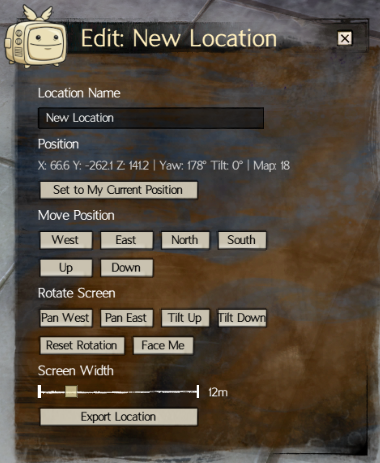
| Control | Description |
|---|---|
| Location Name | Display name for the location |
| Set to My Current Position | Capture current player position |
| Move Position Controls | Fine-tune X/Y/Z position |
| Rotation Controls | Adjust screen rotation |
| Screen Width | Set the width of the world screen |
| Export | Copy location data to clipboard (JSON) for sharing |
Twitch Login Window
Link your Twitch account to access followed channels.
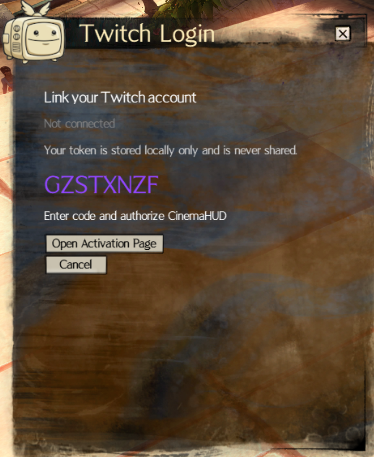
| Step | Action |
|---|---|
| 1 | Click “Connect Twitch” |
| 2 | A code is displayed |
| 3 | Click “Open Activation Page” |
| 4 | Enter the code on Twitch and authorize |
Your token is stored locally only and never shared.
Location Info Window
View details about a preset location.
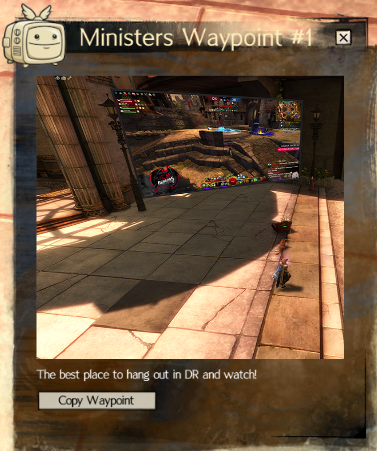
| Element | Description |
|---|---|
| Screenshot | Preview image of the location |
| Description | Location description |
| Copy Waypoint | Copy the associated waypoint to clipboard |
Third-Party Notices Window
View licenses for third-party libraries used by CinemaHUD.
Blish HUD Module Settings
Access additional settings via the Blish HUD settings panel (Settings → Modules → CinemaHUD).
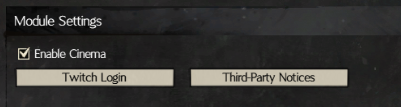
| Element | Description |
|---|---|
| Enable Cinema | Toggle CinemaHUD on/off |
| Twitch Login | Connect your Twitch account (alternative to Source tab login) |
| Third-Party Notices | View open source licenses |
Supported Media Formats
CinemaHUD uses LibVLC for media playback.
| Type | Formats |
|---|---|
| Video Files | MP4, MKV, AVI, WEBM, MOV, FLV |
| Live Streams | M3U8, HLS, RTSP, RTMP |
| Audio Streams | MP3, AAC, OGG, internet radio |
| Local Files | file:///C:/path/to/video.mp4 |
Known Limitations
| Limitation | Description |
|---|---|
| Twitch Ads | Ads will play even if you are subscribed to a channel. CinemaHUD is not a first-party Twitch app, so subscription ad-free benefits do not apply. |
| World Screen Occlusion | In-game world screens render on top of all objects. Players and objects between you and the screen will not occlude it. |
| Performance | Video playback may impact performance on lower-end systems. Reduce stream quality if needed. |
| Watch Party YouTube Only | Watch Party currently only supports YouTube videos. Twitch streams and other sources are not supported in party mode. |
| Watch Party Sync | Minor sync differences may occur due to network latency. Use the resync button if playback drifts significantly. |
Feedback
Contact Ori (Originals.8492) in-game for suggestions, ideas, or feedback.
Share Post